Table of Contents

When an agent is working on a change, I want to start another task without moving its files around or switching branches underneath it. I built Heft to make that one command.
I’ve been sharing engineering articles and lab builds on Practically Agents. With Heft, I can also share the tooling behind how I work with coding agents. I’m pleased with how small the workflow has become.
A task gets its own workspace
Git worktrees let you check out different branches in separate directories within the same repository, giving concurrent tasks their own working files. Heft creates a Herdr workspace alongside the worktree, so the agent has somewhere to run as soon as the branch is ready.
For example, after initializing Heft in a repository:
heft work fix/search-empty-state --prompt="Investigate the empty search results view and propose a fix"Heft fetches origin, creates the branch from your configured base, checks it out in .worktrees/fix_search-empty-state, and opens a Herdr workspace. With a recognized agent configured, it starts the agent and sends the prompt. Your existing workspace stays open.
Heft reuses existing branches, including branches on origin. If the worktree already exists at the expected path, its files and commits stay as they are. Each invocation opens a new Herdr workspace, runs the configured tabs, and sends any supplied prompt.
From a task to an agent prompt
You can wrap the command in a project script. The Heft README includes a Fizzy example: a Make target turns a card number into a branch and a prompt asking the agent to inspect the card and prepare a plan.
The same pattern works for a task you describe directly:
heft work docs/setup --no-focus --prompt="Read the setup instructions, check them against the repository, and propose corrections"--no-focus keeps the current Herdr workspace focused. The command returns when Herdr accepts the prompt, while the agent continues working in its new workspace. You’ll need to come back to review the result.
Project configuration lives in .heft.yaml. You can choose your agent command and tabs, then define named profiles for different setups. Prompt delivery requires a tab marked agent: true running an agent Herdr recognizes. There is also an installable Heft skill that teaches coding agents how to use the workflow themselves.
Keep workspaces from piling up with heft prune
After heft work, heft prune is the command I find most useful. When starting a task is this easy, worktrees and Herdr workspaces can pile up. Once I’m finished with a batch of tasks, I want to clear them out:
heft pruneIt removes clean linked worktrees and closes their workspaces, skipping dirty worktrees and workspaces with active agents. Local branches stay intact. That keeps the workspace list manageable without having to clean up each task individually.
Here, clean means no staged, unstaged, or untracked changes. Prune uses that check and agent activity to decide what to remove; it doesn’t check whether a task is done or its branch has been merged.
For a closer look, or to remove just one finished worktree:
heft list
heft cleanup fix/search-empty-state
The individual cleanup command also requires a clean worktree and preserves its local branch.
I still need to test and review the changes, and resolve any conflicts when I bring branches together. Spending less time setting up workspaces leaves more attention for that work.
Try it on your next task
You need Git and Herdr installed. The release installer also needs curl, tar, and sha256sum; Go is only needed if you build from source. Follow the installation instructions in the README, then run this from your repository:
heft init
heft work feature/your-next-task
Check the agent command during setup. Choosing Codex defaults to codex --yolo, which disables approval prompts and sandboxing. Choose a command with the permissions you want before launching work.
You’ll find Heft in our Resources, and the code is on GitHub. Try it on a task you already have waiting. If it helps, a star is welcome. If something gets in your way, open an issue and tell me what you were trying to do.
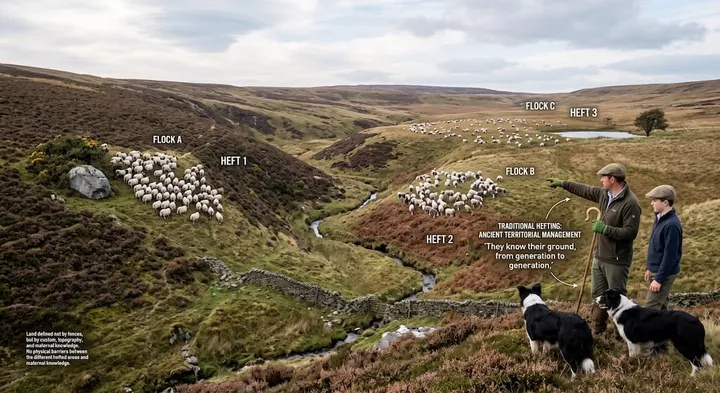
Logo and hillside illustration from the Heft repository. Command behavior and setup details follow its README.